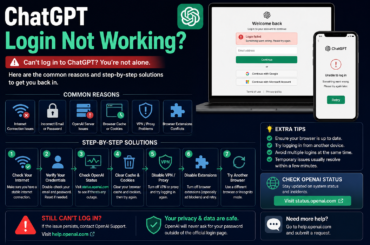
You’re mid-conversation with ChatGPT. You send a message — and instead of a response, you get a network error. Maybe it happens on the first message. Maybe it appears after a long reply that cuts off halfway through. Either way, the experience is jarring and the error message gives you almost nothing to work with.
ChatGPT network errors are among the most commonly reported issues on OpenAI’s platform. They affect users on every browser, every device, and every internet connection type. The causes range from temporary server hiccups to local browser problems to specific network configurations that conflict with OpenAI’s infrastructure.
The good news is that most ChatGPT network errors are resolved quickly once you know what’s actually causing them. This guide covers every major cause and every practical fix, in order from the fastest to try to the more involved solutions, so you can get back to work without spending hours troubleshooting.
What Causes a ChatGPT Network Error?
Understanding what’s behind the error helps you pick the right fix immediately rather than working through steps at random.
Server-Side vs. Client-Side Errors
ChatGPT network errors fall into two broad categories. Server-side errors originate at OpenAI’s end; their infrastructure is overloaded, undergoing maintenance, or experiencing an unplanned outage.
Client-side errors originate on your end, your browser, your internet connection, your device configuration, or your network environment is creating a problem that prevents successful communication with ChatGPT’s servers.
The error message “network error” doesn’t always tell you which type you’re dealing with. That’s why the first step is always checking OpenAI’s status before doing anything else.
Long Responses and Timeout Errors
One specific and very common cause of ChatGPT network errors is response length. When ChatGPT generates a very long response, a lengthy essay, a large block of code, or a detailed analysis, the connection sometimes times out before the response finishes delivering. This produces a network error that cuts the response off mid-sentence.
This type of error isn’t caused by your internet speed or browser; it’s caused by the duration of the response generation itself. The fix for this specific scenario involves prompting strategies rather than technical troubleshooting, and we’ll cover that below.
Fix 1: Check OpenAI’s Server Status First
Before touching your browser, your router, or any settings on your device, spend 30 seconds checking whether the problem is on OpenAI’s side.
Where to Check
Visit status.openai.com OpenAI’s official real-time status page. It shows the current operational status of ChatGPT, the API, and other OpenAI services. Any active incidents, degraded performance, or maintenance windows are posted there as they happen.
For additional confirmation, check downdetector.com/status/openai, which aggregates user-reported problems in real time. If a widespread incident is active, you’ll see a spike in reports. In that case, the only available action is waiting for OpenAI to resolve the issue, local fixes won’t help. Most incidents are resolved within one to three hours.
Fix 2: Refresh the Page and Try Again
If the status page shows everything operational, the next step is the simplest possible: refresh and retry.
Why a Simple Refresh Works
ChatGPT network errors are sometimes caused by momentary connection interruptions — a brief drop in your Wi-Fi signal, a temporary blip in OpenAI’s load balancing, or a session that stalled mid-response. These resolve on their own within seconds.
Press F5 or Ctrl + R (Windows) / Command + R (Mac) to refresh the page. If the conversation context is important to you, use the browser’s back button after refreshing to return to the same conversation thread. Wait 10 to 15 seconds before sending a new message to give the session time to fully reinitialize.
Fix 3: Clear Your Browser Cache and Cookies
Stale cached data and expired session cookies interfere with ChatGPT’s ability to maintain a stable connection. Clearing them gives the session a completely clean start.
How to Clear Cache in Chrome
Press Ctrl + Shift + Delete on Windows or Command + Shift + Delete on Mac. Set the time range to “All time.” Check “Cached images and files” and “Cookies and other site data.” Click “Clear data,” then close the browser completely, reopen it, and navigate back to ChatGPT.
After clearing, the browser establishes a fresh session without any stored data conflicting with the connection. This fix resolves a significant portion of persistent network errors that survive simple page refreshes.
Test in an Incognito Window First
Before clearing your entire cache, open an incognito or private browsing window and try ChatGPT there. Incognito mode bypasses cached data and disables extensions instantly.
If ChatGPT works in incognito but not in regular mode, cached data or a browser extension is the cause, and you’ve confirmed the fix without clearing everything in your main browser.
Fix 4: Disable Browser Extensions
Extensions are a frequent but overlooked cause of ChatGPT network errors. Ad blockers, VPN extensions, script blockers, and privacy tools all have the potential to interfere with the streaming connection that ChatGPT uses to deliver responses.
How to Identify the Problem Extension
Disable all extensions and test ChatGPT. If the network error disappears, re-enable extensions one at a time and test after each one. The error returns when the problematic extension is re-enabled, add chat.openai.com to that extension’s exception list and keep it enabled everywhere else.
The most commonly reported conflicting extensions include uBlock Origin, Privacy Badger, Ghostery, and browser-based VPN tools. Adding ChatGPT’s domain to their whitelist is usually enough to resolve the conflict without disabling the extension globally.
Fix 5: Check and Improve Your Internet Connection
A slow, unstable, or intermittent internet connection is one of the most common causes of ChatGPT network errors, particularly for longer responses that require a sustained connection.
Test Your Connection Speed
Run a speed test at fast.com — a tool run by Netflix that accurately measures your available bandwidth. ChatGPT doesn’t require high speeds for basic chat, but it does require a stable, consistent connection.
If your speed test results are inconsistent, jumping between high and low speeds on successive tests, connection instability rather than raw speed is the likely culprit.
Improve Connection Stability
Switch from Wi-Fi to a wired Ethernet connection if your device supports it. Wired connections eliminate wireless interference and are significantly more stable for sustained data transfers like ChatGPT’s streamed responses.
If a wired connection isn’t available, moving your device closer to the router or restarting the router often improves stability enough to resolve the error.
Also, check whether other devices on your network are consuming large amounts of bandwidth, such as video streaming, large file downloads, or cloud backups running in the background, all of which compete for available bandwidth and can destabilize ChatGPT’s connection.
Fix 6: Disable or Switch Your VPN
VPNs are one of the most consistent sources of ChatGPT network errors, and the connection isn’t always obvious.
Why VPNs Cause Network Errors
ChatGPT uses server-sent events (SSE) to stream responses to your browser in real time. Some VPN configurations interfere with this streaming protocol, either by adding latency that causes timeouts, by routing traffic through servers that OpenAI rate-limits, or by blocking the persistent connection that streaming responses require.
Disable your VPN and attempt a conversation without it. If the network error disappears, the VPN is the cause. Switching to a different VPN server, particularly one geographically closer to you, sometimes preserves the VPN connection while eliminating the interference.
Alternatively, split tunneling (if your VPN supports it) can exclude ChatGPT traffic from the VPN tunnel while keeping other traffic protected.
Fix 7: Fix Network Errors Caused by Long Responses
If your network errors appear specifically during long ChatGPT responses, cutting off essays, code blocks, or detailed explanations partway through, the cause is response timeout rather than a connectivity problem.
Break Long Requests Into Smaller Parts
Instead of asking ChatGPT to generate a 3,000-word essay in a single prompt, break the request into sections. Ask for the introduction first, then request each subsequent section separately.
This approach keeps each response short enough to complete within the connection window, eliminating timeout-based network errors.
Use Continuation Prompts
When a response is cut off by a network error, type “Continue” or “Please continue from where you left off” in the next message. ChatGPT resumes from the point where the response stopped. This doesn’t fix the underlying timeout issue, but it provides an immediate workaround that keeps the conversation moving without losing context.
Regenerate the Response
The regenerate button, the circular arrow icon beneath a cut-off response, attempts to generate the response again. On a second attempt, ChatGPT sometimes completes the response successfully, particularly when the original error was caused by a momentary server load spike rather than a structural timeout.
Fix 8: Try a Different Browser
When everything else checks out, but the network error persists on one specific browser, switching browsers eliminates the browser itself as the variable.
Best Browsers for ChatGPT
Google Chrome and Microsoft Edge are the most reliably compatible browsers for ChatGPT’s streaming response architecture. Both handle the server-sent events protocol cleanly and maintain stable connections for long conversations.
Firefox works well in most cases but has occasionally been reported as causing streaming interruptions on specific builds. Safari on macOS and iOS is generally compatible, though some users report a higher frequency of network errors compared to Chrome on the same device.
If you haven’t tried Chrome yet, download it from google.com/chrome and test ChatGPT there before pursuing more complex troubleshooting.
Fix 9: Use the ChatGPT Mobile App
When browser-based ChatGPT consistently produces network errors and you’ve exhausted browser fixes, the ChatGPT mobile app is worth trying as an alternative access point.
Why the App Behaves Differently
The ChatGPT iOS and Android apps handle the connection to OpenAI’s servers differently from the browser-based interface. They use a native networking stack rather than a browser’s HTTP implementation, which can sidestep browser-specific connection issues entirely.
Download the official ChatGPT app from the App Store or Google Play. Sign in with your existing credentials and test whether network errors persist there. If the app works cleanly while the browser doesn’t, the issue is browser or extension-related, and you now have a working environment to use while resolving the browser problem.
Fix 10: Contact OpenAI Support
When all local fixes have been tried and network errors persist consistently, contacting OpenAI directly is the appropriate next step.
How to Reach OpenAI Support
Visit help.openai.com and use the search function to find documentation relevant to your specific error. The help center covers network errors, connection timeouts, and API issues in detail. If documentation doesn’t resolve the problem, scroll to the bottom of the page and click “Get help” to submit a support request.
When submitting a request, include specific details: the exact error message displayed, the browser and operating system you’re using, the approximate time the errors began, whether they occur on every message or only long ones, and the steps you’ve already tried.
Detailed submissions receive faster and more targeted responses. ChatGPT Plus subscribers typically receive priority support responses.
Conclusion
A ChatGPT network error feels like a dead end, but it rarely is. Server outages resolve on their own. Browser fixes take under five minutes. VPN adjustments and connection improvements handle the majority of persistent errors.
And for timeout-specific errors on long responses, prompt strategies provide an immediate workaround that doesn’t require any technical changes at all.
Work through the fixes in order, starting with the status check. Most users resolve their network error within the first three or four steps. For anything that persists, OpenAI’s help center at help.openai.com is well-stocked with guidance, and their support team is the right resource for account-specific or unusual cases.
Getting ChatGPT working reliably is worth the effort. Now you have the complete toolkit to make it happen.