You open your favorite app, and a box pops up that says, “Unfortunately, the app has stopped.” You tap OK, try again, and the same thing happens. When Android apps keep stopping, it feels like your phone has turned against you.
Don’t worry. This problem is common, and you can fix it yourself. In most cases, you don’t need a repair shop or a new phone. You just need to know why Android apps keep stopping and which fix matches your situation.
In this guide, you will learn the main causes behind the problem. You will also get 12 simple fixes, from quick tricks to deeper repairs. Each step uses plain language, so even a beginner can follow along.
What Does It Mean When Android Apps Keep Stopping?
First, let’s clear up the message itself. When your phone says an app “keeps stopping,” the app has crashed. Something went wrong inside the app, and Android shut it down to protect the rest of your phone.
Think of it like a circuit breaker in your home. When too much power flows through a wire, the breaker trips. In the same way, Android closes an app when it breaks a rule or runs out of resources.
Sometimes only one app crashes. At other times, Android apps keep stopping across your whole phone. This difference matters because it points to different causes. A single bad app usually has its own bug. Many crashing apps usually point to a system-level problem.
You may also see other versions of the message, such as:
- “App isn’t responding”
- “App has stopped”
- “Unfortunately, [app name] has stopped”
- The app opens, then closes right away
All of these messages mean roughly the same thing. The fixes below will help when Android apps keep stopping in any of these ways.
Why Android Apps Keep Stopping: The Most Common Causes
Before you fix anything, it helps to know what you are fighting. Here are the usual suspects.
1. Low Storage Space
Apps need free space to save temporary files. When your storage is almost full, apps struggle to work. As a result, Android apps keep stopping without warning.
2. Not Enough Memory (RAM)
Your phone’s RAM works like a desk. The more apps you open, the more crowded the desk gets. Eventually, there is no room left, so Android closes some apps to make space.
3. Outdated Apps or an Old Android Version
Developers release updates to fix bugs. If you skip updates, your apps may clash with the newer parts of your system. Likewise, an old Android version may not support new apps.
4. Corrupted Cache or Data
Every app stores small files called a cache to load faster. However, these files can become damaged. A damaged cache is one of the top reasons Android apps keep stopping.
5. A Faulty Android System WebView Update
Many apps use a hidden tool called Android System WebView to show web content. When an update to this tool goes wrong, many apps crash at the same time. This happened to millions of users in past years.
6. Bad Network Connection
Some apps crash when the internet drops during startup. This is common with banking, social media, and streaming apps.
7. Conflicting Apps or Malware
Two apps can fight over the same resources. In addition, a harmful app can slow your phone and break other apps.
8. Software Bugs in the App Itself
Sometimes the app is simply broken. A new update may contain a bug that the developer missed.
Quick Fixes to Try First
Start with the easy fixes for Android apps that keep stopping. They take less than five minutes, and they solve many cases of Android apps keep stopping.
Restart Your Phone
This sounds too simple, but it works surprisingly well. A restart clears your RAM and closes stuck processes.
- Hold the power button.
- Tap Restart.
- Wait for the phone to turn on fully.
- Open the app again.
Check Your Internet Connection
Switch between Wi-Fi and mobile data. If one works and the other doesn’t, you have found a clue. Also, try turning Airplane Mode on for ten seconds, then off again.
Close Apps You Are Not Using
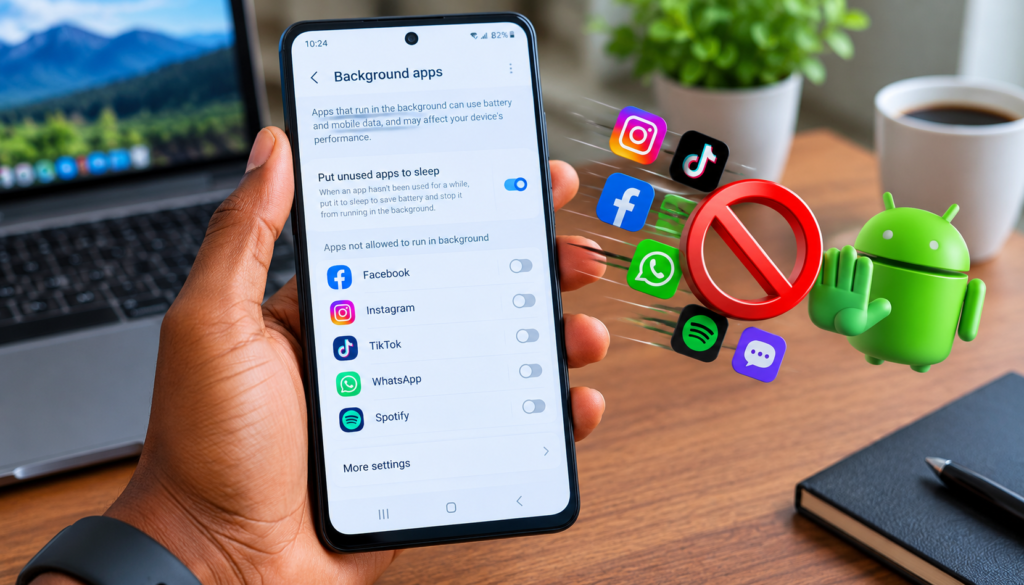
Too many open apps drain your memory. Swipe away the ones you don’t need. Furthermore, avoid keeping apps running in the background when you don’t use them. If you want a full walkthrough, you can follow this guide on running in the background and free up memory the smart way.
12 Proven Ways to Fix Android Apps Keep Stopping
If the quick fixes didn’t help, move on to the steps below. Work through them in order. Most people solve the problem before they reach step eight.
Fix 1: Clear the App Cache
A messy cache is the number one cause. Clearing it removes temporary files without deleting your personal data.
- Open Settings.
- Tap Apps (or Apps & notifications).
- Select the app that keeps crashing.
- Tap Storage.
- Tap Clear Cache.
Then reopen the app. If Android apps keep stopping even after this, go to the next fix.
Fix 2: Clear the App Data
This step goes deeper. It resets the app to its fresh state, just like a new install. However, it may log you out and erase local settings.
- Go to Settings and then Apps.
- Pick the problem app.
- Tap Storage.
- Tap Clear Data (or Clear Storage).
- Confirm the action.
Back up important files first. For example, save your chat history or game progress to the cloud.
Fix 3: Update the App
Developers fix crashes through updates. Therefore, always check for a newer version.
- Open the Google Play Store.
- Tap your profile picture.
- Choose Manage apps & device.
- Tap Updates available.
- Update the crashing app.
You can also turn on auto-update. This keeps your apps fresh without any effort from you.
Fix 4: Update Android System WebView and Chrome
This fix helps a lot when many apps crash together. Search for Android System WebView in the Play Store. Then tap Update if you see the button. Do the same for Google Chrome.
If the update button is missing, the tool is already current. In that case, try uninstalling its updates:
- Open Settings and then Apps.
- Tap the three dots and choose Show system apps.
- Find Android System WebView.
- Tap Uninstall updates.
After that, update it again from the Play Store. This reset often ends a crash loop.
Fix 5: Free Up Storage Space
Check how much storage you have left. Go to Settings, then Storage. If you see less than 10% free, you have a problem.
Here is how to clear space fast:
- Delete old videos and large photos
- Remove apps you haven’t used in months
- Clear downloaded files
- Move photos to Google Photos or another cloud service
- Empty the trash folder in your gallery
For example, a single WhatsApp media folder can eat several gigabytes. A quick cleanup there can work wonders when Android apps keep stopping.
Fix 6: Update Your Android Software
An outdated system can break newer apps. Check for updates like this:
- Open Settings.
- Tap System and then Software update.
- Tap Check for update.
- Download and install anything available.
Keep your phone plugged in during the update. In addition, use Wi-Fi so you don’t burn through mobile data.
Fix 7: Uninstall and Reinstall the App
When one stubborn app keeps crashing, a clean install usually solves it. Remove the app completely. Then install it again from the Play Store.
Popular social apps often crash after bad updates. For instance, many people see their Facebook app freeze after a patch. If that sounds familiar, this post on a Facebook problem walks you through extra steps for that app.
Fix 8: Restart in Safe Mode
Safe Mode loads only the basic system. It turns off all third-party apps. Therefore, it helps you find out whether a downloaded app causes the trouble.
- Hold the power button.
- Press and hold Power off on the screen.
- Tap OK when asked to reboot in Safe Mode.
- Use your phone for a few minutes.
If the crashes stop in Safe Mode, a recently installed app is the culprit. Restart normally. Then delete the newest apps one by one until the problem ends.
Fix 9: Check App Permissions
Sometimes an app crashes because it can’t reach what it needs, like your camera, storage, or location. Review its permissions:
- Go to Settings and then Apps.
- Select the app.
- Tap Permissions.
- Allow what the app truly needs.
Be careful, though. Only grant permissions that make sense for the app.
Fix 10: Turn Off Battery Saver and Data Saver
Power-saving modes can limit what apps can do. As a result, some apps stop working correctly. Turn off Battery Saver and Data Saver for a test. If the crashes disappear, add your key apps to the exception list instead.
Fix 11: Scan for Malware
Harmful apps can wreck your phone’s performance. Open the Play Store, tap your profile icon, and choose Play Protect. Then tap Scan. Remove anything the scan flags.
In addition, delete apps you installed from outside the Play Store. Those files carry a higher risk.
Fix 12: Factory Reset as a Last Resort
If Android apps keep stopping after every fix above, a factory reset may be the answer. This wipes your phone and returns it to its original state.
Warning: This erases everything. Back up your photos, contacts, and files first.
- Open Settings.
- Tap System and then Reset options.
- Choose Erase all data (factory reset).
- Confirm and wait for the process to finish.
After the reset, install your apps slowly. Test the phone after each batch. That way, you can spot any app that brings the crashes back.
What to Do When Only One App Keeps Stopping
Sometimes a single app causes all the trouble. When just one of the Android apps keep stopping, the cause is often local. In that case, the problem usually lives inside the app. Follow this short plan:
- Clear the cache and data
- Update or reinstall the app
- Check the app’s reviews in the Play Store for similar complaints
- Contact the developer through the app page
- Look for an older, stable version if the newest one is broken
Streaming apps deserve special mention. They use lots of memory and depend on a strong connection. If you watch shows on your phone and see crashes, read this guide to Netflix problems for fixes that match that app’s quirks.
What to Do When All Your Apps Keep Stopping
When every app crashes, the cause is almost always bigger. Widespread crashes mean Android apps keep stopping because of the system, not one bad app. Therefore, focus on system-level fixes. Start with these:
- Free up storage and memory
- Update Android System WebView
- Update your Android version
- Boot into Safe Mode to test for a bad app
- Run a Play Protect scan
- Factory reset if nothing else works
Notice that these steps match fixes 4, 5, 6, 8, 11, and 12. Start with the first on the list, and move down. Most people solve it long before the factory reset.
How to Stop Android Apps Keep Stopping From Happening Again
Fixing the problem is great. Preventing it is even better, because nobody wants to see Android apps keep stopping twice. Use these habits to keep your phone healthy.
Keep Your Phone Updated
Turn on auto-update for apps and install system updates when they appear. This single habit prevents a huge share of crashes.
Protect Your Storage
Aim to keep at least 15% of your storage free. Clean out junk files once a month. Moreover, back up photos to the cloud so they don’t pile up on your device.
Install Apps From Trusted Sources Only
Stick to the Google Play Store. Avoid shady websites that offer “free” paid apps. Those files often carry malware.
Don’t Overload Your Phone
Too many apps will slow any phone, and a slow phone is a common reason Android apps keep stopping. Delete the ones you no longer use. As a result, your phone will run cooler, faster, and more reliably.
Restart Your Phone Weekly
A quick restart clears out junk in memory. Make it a weekly habit, just like charging your phone at night.
Watch Out for Beta Software
Beta versions of Android and beta apps often contain bugs. Unless you enjoy testing, stay on stable releases.
When to Get Professional Help
Sometimes the problem goes beyond software. If Android apps keep stopping even after a factory reset, your phone may have a hardware fault. A failing storage chip or a bad memory module can cause constant crashes.
Look for these warning signs:
- The phone overheats for no reason
- The battery drains very fast
- The screen freezes often
- The phone restarts on its own
In that case, visit an authorized service center. If the phone is still under warranty, ask for a free repair or a replacement.
Conclusion: Take Back Control of Your Phone
Dealing with the problem when Android apps keep stopping is frustrating, but you now have a clear plan. Start with a restart, clear the cache, and update your apps. Next, refresh Android System WebView, free up storage, and try Safe Mode. Use a factory reset only as your final option.
Remember, most crashes come from simple causes like a full phone, an old app, or a broken cache. So you can usually fix them in minutes without spending a cent.
Ready to try? Pick the first fix on this list and test it right now. Then bookmark this page so you can find it the next time Android apps keep stopping on your phone. If this guide helped you, share it with a friend who is tired of app crashes, and leave a comment to tell us which fix worked for you.
Frequently Asked Questions (FAQ)
Why do Android apps keep stopping suddenly?
Android apps keep stopping suddenly for several reasons. The top ones are low storage, a corrupted cache, outdated apps, and a bad WebView update. Start by clearing the app cache and updating the app. These two steps solve most sudden crashes.
Will a factory reset fix apps that keep stopping?
Yes, a factory reset usually ends software-related crashes because it wipes the system clean. However, it deletes all your data. Therefore, try the simpler fixes first, and back up your files before you reset.
Is it safe to clear app data when an app keeps crashing?
It is safe for your phone, but you may lose local information. For example, you could lose game progress or saved logins. If the app syncs with an online account, your data usually returns after you sign in again.
Does Android System WebView cause apps to stop?
It can. A faulty WebView update has caused mass crashes before. If many apps stop at once, update WebView and Chrome in the Play Store. If that fails, uninstall the WebView updates and install them again.
How do I find out which app is causing the crashes?
Use Safe Mode. If the crashes stop there, a third-party app is to blame. Then restart normally and remove your newest apps one at a time. Test your phone after each removal to find the guilty one.